
Appearance
Projects
Any outcome that takes more than one action is a project. Projects hold the tasks toward that outcome, plus a clear successful outcome statement.
Press p to open the Projects view (when you're not already typing in a field; shortcuts are suppressed inside note editors, task titles, and other text inputs).
Successful outcome
"Book is printed and shipped" beats "Book project." The outcome statement is how future-you knows when to mark this complete. Be concrete. Name the state of the world when it's done.
When you create a project, the name and outcome default to the same text. Edit the outcome to make it more specific if you want. Click the line below the project name.
Parallel vs Sequential
Two flavors of project, inherited from classic GTD:
- Parallel (default). Every active task is available simultaneously. "Plan vacation": book flights, research hotels, buy luggage, any order.
- Sequential. Each task blocks the next. "Set up home office": buy desk → assemble desk → set up monitor. Doing step 3 before step 1 doesn't make sense.
Set per-project via the chip in Project Detail labeled "Parallel" or "Sequential." Hover for "Treat Next actions as" tooltip.
The Sequential toggle on Next Actions
On the Next Actions view, there's a Sequential toggle in the header. When on:
- Sequential projects collapse to just their first incomplete task
- Parallel projects show all their active tasks (no change)
- Projectless tasks (loose items) always show
When you complete the visible task of a sequential project, the next one auto-surfaces. This is how sequential mode stays useful; you never see future steps that aren't yet actionable.
Default for new projects
Settings → Preferences → Default sequence mode for new projects. Set it once. Applies to every project you create afterward. Can always be overridden per project.
Tasks in a project
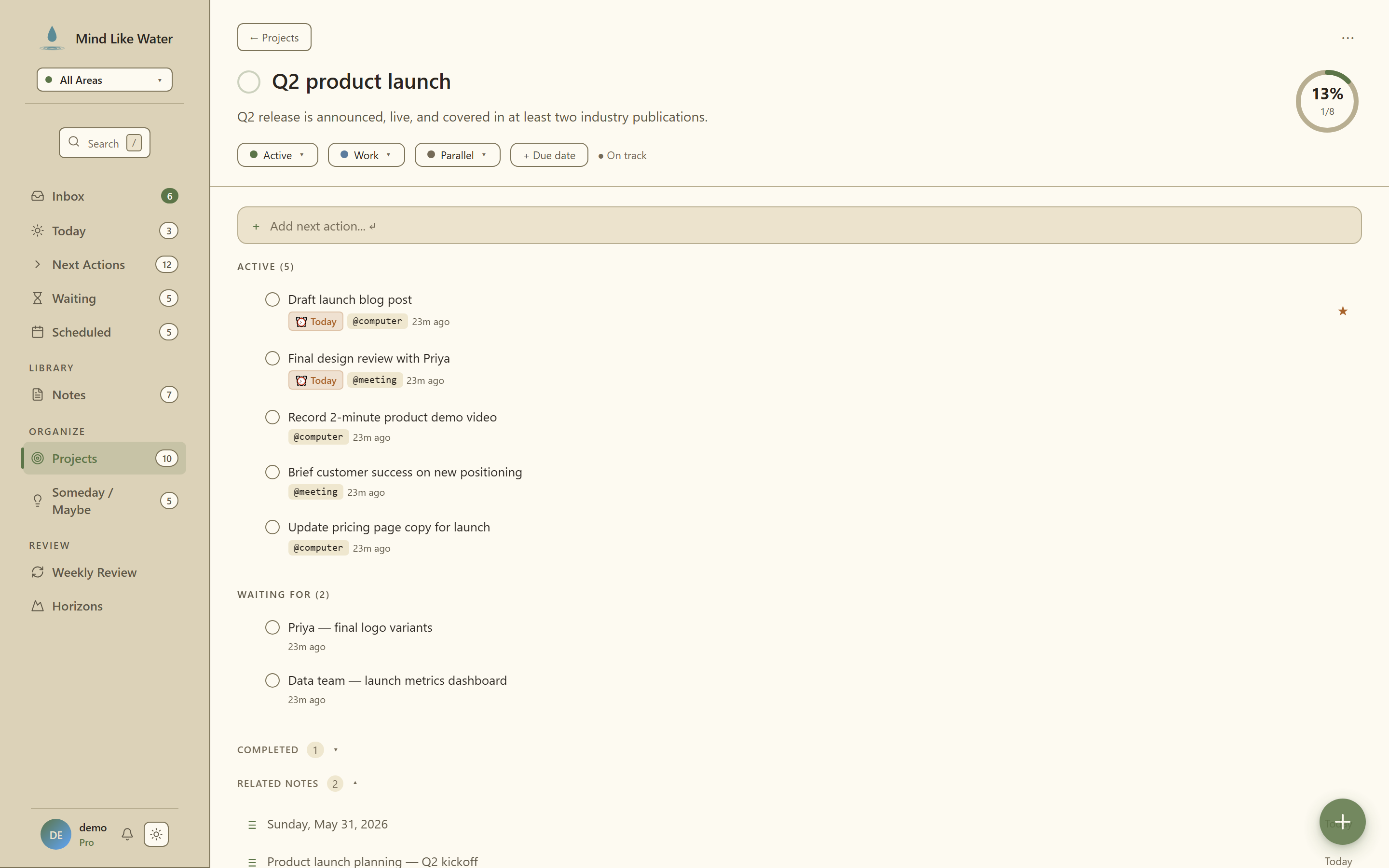 Project Detail: tasks grouped by status (Active / Waiting For / Completed), with a progress ring, area chip, and parallel/sequential toggle.
Inside a project detail, tasks are grouped by status:
- Next Actions. Ready to go.
- Waiting For. Delegated or dependent.
- Scheduled. Pinned to a future date.
- Other. Leftover (someday/etc. that got attached).
- Completed. Collapsed by default.
Drag to reorder or re-classify
- Drag within a section → reorders tasks. This is also how you set the sequence for a Sequential project.
- Drag to a different section → changes the task's status.
- Dropping on Waiting pops a person picker so you can immediately tag who you're waiting on. Type to filter existing
@people, Tab to pick, Enter to create a new one. Cancelling leaves the task in its source section. - Dropping on Scheduled pops a date picker (defaults to tomorrow, or to the task's existing future start date if one was set). Enter confirms, Esc cancels.
- Dropping on Active, Someday, or Done commits immediately. No missing info to ask for.
- Dropping on Completed stamps
completed_atand marks the task done. The section auto-reveals during drag even if collapsed.
- Dropping on Waiting pops a person picker so you can immediately tag who you're waiting on. Type to filter existing
Waiting, Scheduled, and Someday sections only appear when they have tasks. They pop into view when you start dragging so you have somewhere to drop.
Project-level actions
Each project row and the project detail page both have a ⋯ menu with:
- Duplicate project. Clones name, outcome, area, sequence mode, and all non-completed tasks.
- Convert to tasks. Unlinks every task from the project and keeps them as standalone tasks; the project itself (and its outcome statement) is deleted. Useful when you realize the "project" was really just two or three loose actions all along.
- Mark complete. Sets status to done.
- Archive project. Removes from active lists but keeps the record.
- Delete project. Confirm dialog, then removes project + all its tasks.
Filters in the Projects list
 The Projects view header: area chips on the left and status tabs (Active / On Hold / Someday / Completed) on the right.
The Projects view header has chips you can flip on to narrow the list:
- Area. Limit to one Area of Focus.
- ⚠ Stalled. Only projects whose health is Stalled (no Next Action, but incomplete tasks remain). Red palette as an attention cue.
- 📅 Due. Only projects with a due date today or overdue.
The two health chips (Stalled and Due) are mutually exclusive. Click one and any other active health filter clears. Click an active chip again to return to "All." The counts on each chip reflect the current Area / search-filtered pool so they're always honest about what you'll see after clicking.
Combine with the search box to find a specific project fast.
Health indicators
The colored dot on each project row tells you at a glance:
- ● Healthy. Next action exists, tasks flowing.
- ⚠ Stalled. No next action, but incomplete tasks remain.
- ◉ Blocked. Only Waiting tasks, nothing you can do.
- ○ Paused. On hold or someday.
- ✓ Complete.
Next: Areas of Focus →
Related
- Areas of Focus. Every project belongs to an area.
- Checklist templates. Drop reusable checklists into a project's tasks.
- Weekly Review. The discipline that keeps projects honest.