Projects that know what "done" means.
Every project has a successful outcome statement, a flavor (parallel or sequential), and a health indicator. Not a folder of tasks with a label — a real GTD structure underneath.
Try it free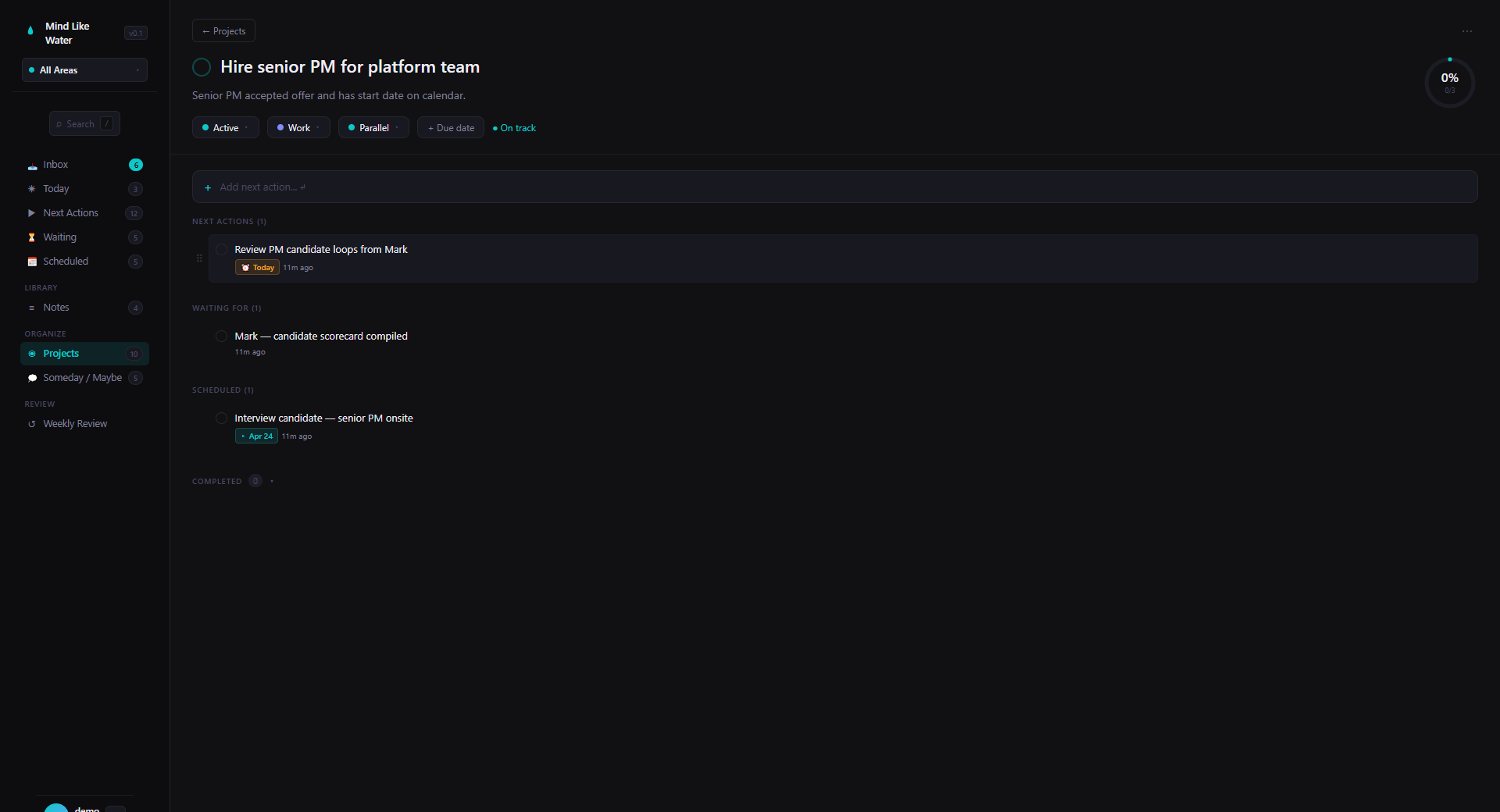
The successful outcome statement
Anything that takes more than one action is a project. But "Book project" isn't a useful name; you'll never know when you're done. "Book is printed and shipped" is. That's the successful outcome — a concrete description of the state of the world when this is complete.
When you create a project, the name and outcome default to the same text. Edit the outcome to make it more specific. Click the line below the project name in detail view.
The mental model: the project name is a label. The outcome statement is the contract — the thing you're agreeing to deliver when you say this project exists.
Parallel vs Sequential
Two flavors, inherited from classic GTD:
- Parallel (default) — every active task is available at once. Plan vacation: book flights, research hotels, buy luggage. Any order.
- Sequential — each task blocks the next. Set up home office: buy desk → assemble desk → set up monitor. Doing step 3 before step 1 doesn't make sense.
Set the flavor with the chip in Project Detail labeled "Parallel" or "Sequential."
The Sequential toggle on Next Actions
On the Next Actions view, a Sequential toggle in the header collapses sequential projects to just their first incomplete task. When you complete that visible task, the next one auto-surfaces. You never see future steps that aren't yet actionable. Parallel projects show all their active tasks regardless.
Set the default for new projects in Settings → Preferences → Default sequence mode. Override per project anytime.
Inside a project
Tasks are grouped by status:
- Next Actions — ready to go
- Waiting For — delegated or dependent
- Scheduled — pinned to a future date
- Other — leftover (someday or similar that got attached)
- Completed — collapsed by default
Drag tasks within a section to reorder. Drag to a different section to change the task's status. Dropping on Waiting sets the waiting date to now; dropping on Scheduled sets the start date to today (edit via the chip afterward). Sections only appear when they have tasks; they pop into view when you start dragging.
Health at a glance
Each project row shows a colored health indicator:
- ● Healthy — next action exists, tasks flowing
- ⚠ Stalled — no next action defined, but incomplete tasks remain
- ◉ Blocked — only Waiting tasks; nothing you can do
- ○ Paused — on hold or someday
- ✓ Complete
Stalled is the one that matters. The project has tasks, but none of them is a clear next action — meaning the project is dead in the water. The Projects view header has a Stalled chip you can flip on to see only the projects that need attention. The AI Weekly Review also calls these out by name.
Project-level actions
Each project has a ⋯ menu with the moves you actually need:
- Duplicate project — clones name, outcome, area, sequence mode, and all non-completed tasks. Useful for repeating work — onboarding a new hire, running a quarterly review, etc.
- Convert to tasks — unlinks every task and keeps them as standalone tasks; the project itself (and its outcome statement) is deleted. Useful when you realize the "project" was really just two or three loose actions all along.
- Mark complete, Archive project, Delete project — the usual lifecycle moves.
Linked reference notes
Every project's detail page has a Related Notes section that lists notes mentioning the project or any of its tasks. The launch project surfaces the kickoff meeting note, the customer discovery synthesis, the daily page where you decided on positioning. All connected, all clickable.
You don't maintain that list. It populates automatically as you write notes that mention the project or its tasks. The connection map you'd build by hand — built for you.
Frequently asked
A concrete description of the state of the world when the project is done. "Book is printed and shipped" beats "Book project." The outcome is how future-you knows when to mark this complete. Be specific. Name the result.
Parallel projects let every active task be available simultaneously — book flights, research hotels, buy luggage, any order. Sequential projects gate tasks: each one blocks the next, so you only see the first incomplete task on the Next Actions view. "Set up home office" is sequential; "Plan vacation" is parallel.
Project health at a glance. Green dot: healthy, next action exists, tasks flowing. Amber: stalled, no next action defined but tasks remain. Blue: blocked, only Waiting tasks. Gray: paused or someday. Check: complete.
Use Convert to tasks from the project's overflow menu. It unlinks every task from the project and keeps them as standalone tasks; the project itself (and its outcome) is deleted. Useful when the "project" was really just two or three loose actions.
Projects that know when they're done.
14 days free, no credit card. Try setting an outcome statement on your most-stuck project — it'll start moving.
Start free trial Free for 14 days. Pro is $8/month after.