Never touch the mouse if you don't want to.
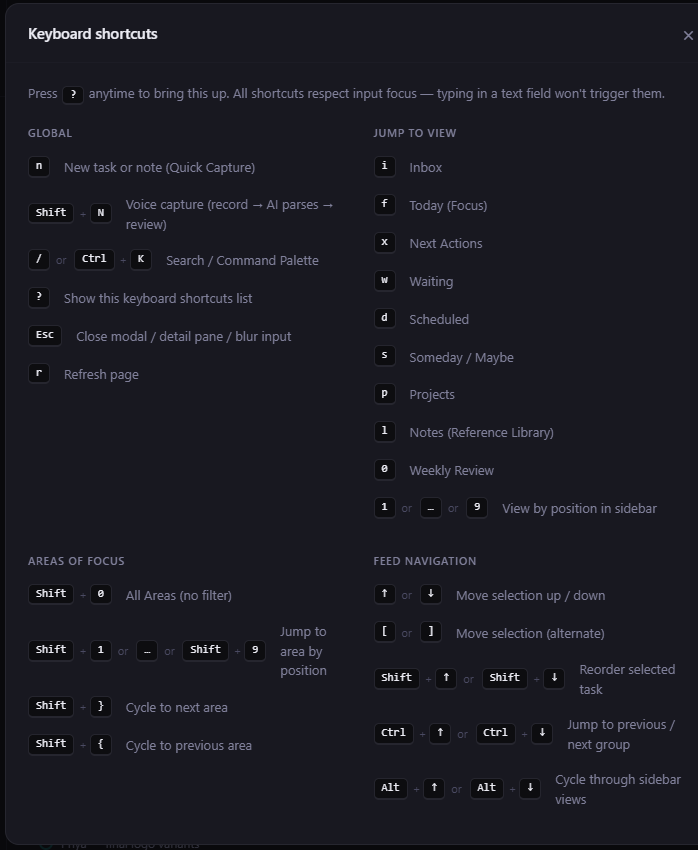
Every action has a shortcut. Every shortcut respects context — typing in a text field never triggers a view jump. Press ? anywhere for the full list. Forget it once, see it once, remember it forever.
The five shortcuts that change everything
Learn these five and you've covered ~80% of what you'd otherwise reach for the mouse to do:
n— new task / note (Quick Capture modal)/orCtrl+K— search / command palettef— Today (Focus)i— Inbox?— show every shortcut
Use those five for a week and the rest will stick on their own. Muscle memory builds in days, not months.
Single-letter view jumps
Every primary view has a one-letter shortcut. No Cmd, no Ctrl, no chords — just the letter:
i— Inboxf— Today (Focus)x— Next Actionsw— Waitingd— Scheduleds— Someday / Maybep— Projectsl— Notes (Library)0— Weekly Review1through9— view by sidebar position
And the Areas of Focus filter works the same way: Shift+1–9 to jump to a specific Area, Shift+0 to clear, Shift+] / Shift+[ to cycle.
Comma-chord chip pickers
On a selected task, press , then a letter within 1.5 seconds to open the chip picker for that field:
,p— Project,a— Area,t— Tags,s— Status,d— Due date,g— Start date,r— Repeat (recurrence),e— Energy,m— Estimate (duration),o— Context (@),k— Checklist template,h— History
The chord is two keystrokes total, faster than any mouse round-trip. The 1.5-second timeout is short enough to feel atomic but long enough to forgive a brief pause.
Context-aware suppression
The hardest problem with letter shortcuts is they fight with typing. Mind Like Water solves it by suppressing single-letter shortcuts when focus is in a text field — note editor, task title, search box, anywhere typing happens.
Two keys still work from inside a field: ? and Esc. Press Esc to exit the field, then your other shortcuts work again.
The rule: if you're typing letters, letters get typed. If you're not, letters trigger actions. The app figures out which one based on focus.
Mouse-disable on click
One subtle thing: when you click a task with the mouse, the risky letter shortcuts (c for complete, v for star, e for preview, Enter for open) are temporarily disabled until you press a navigation key (arrow, etc.). It prevents the classic "I clicked a task and then accidentally typed 'c' as part of writing in another tab" → task gone.
Once you press an arrow key (or any other navigation), keyboard mode re-engages and the action shortcuts work again. The disable is invisible — you only notice when it stops you from a mistake.
Task actions on the selection
Enter— open task detailc— complete taskv— star / unstare— preview the linked note (if any)Ctrl+Z— undo last completion (from the toast)
Combine with the comma chords for full keyboard task management. Select a task with arrows, complete it with c, or change its status with ,s, or assign it to a project with ,p.
Frequently asked
n for capture and / for search/command palette. Those two cover ~80% of the moments you'd otherwise reach for the mouse. Add f (Today), i (Inbox), and 0 (Weekly Review) and you've got the whole workspace at your fingertips.
No. When focus is in a note editor, a task title, a search box, or any text field, single-letter shortcuts are suppressed so they don't interfere with typing. Press Esc to exit the field first, then your shortcut works. ? and Esc are the only keys that fire from inside a field.
On a selected task, press , then a letter within 1.5 seconds to open a chip picker. ,p for Project, ,a for Area, ,t for Tags, ,s for Status, ,d for Due date, and so on. The chord is fast (two keystrokes) and avoids running out of single letters.
Not yet. The shortcut set is fixed for now to keep documentation and onboarding consistent. Customization is on the long-term roadmap; for now, the assumption is the defaults are good enough that you'll learn them once and keep them.
Stop reaching for the mouse.
14 days free, no credit card. Press ? the first time you're stuck. Within a week the muscle memory is yours.