Press n. Anywhere.
From any view, any time, any context — press n and a focused capture modal opens. Type, save, get on with your day. Forms add up; this one keystroke doesn't.
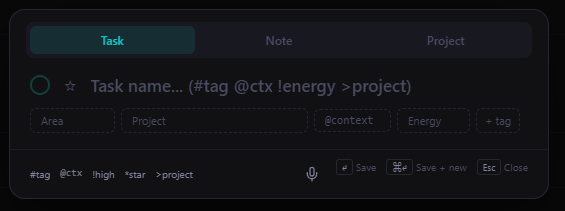
Three tabs, one modal
The Quick Capture modal opens to Task by default, with Note and Project tabs one tab away.
- Task — title, status, area, project, tags, context, energy. Lands in Inbox by default; pre-set a Status chip and it skips Inbox and lands where you put it.
- Note — title + area + project. Lands in your notes inbox if you don't set classification; otherwise filed where you set it.
- Project — name + outcome + area. Creates the project ready for tasks to be added.
Smart-syntax — type the chips
You can pre-fill chip values right in the title. The parser extracts them and clears them from the saved title. Useful when your hands are already typing and clicking chips would break the flow.
#topic— tag (creates if new)@phone,@home,@errands— context (matches against known contexts; otherwise treated as text)!high/!medium/!low— energy level*— stars the task (also adds it to Today)>project— typeahead match against your existing projects by partial name~30min/~1h/~1.5hr— estimated duration3pm/10:30am— due time (sets the date to today and the due time)
All combinable in one capture. Doctor visit 3pm tomorrow ~30min @phone * → "Doctor visit," due tomorrow at 3pm, 30 minutes, context phone, starred. One line, six fields.
Keyboard-first, end to end
The modal is built so you never have to touch the mouse. Tab cycles through chips. Each chip auto-advances focus to the next one when you pick a value. Type → Tab → pick area → Tab → pick project → Tab → pick tags → Enter to save. No mouse round-trips.
Enter— save and closeCmd+Enter/Ctrl+Enter— save and keep the modal open (clears title, keeps chip selections)Esc— cancel without saving
The trick: save-and-keep-open mode is the secret weapon for end-of-day brain dumps. Twenty captures into Inbox without re-opening the modal each time.
Capture defaults to your context
The modal defaults to the active Area of Focus. If you've narrowed your workspace to "Personal" before pressing n, the new task arrives in Personal automatically. No more capturing in the wrong scope by accident.
Same logic for project — if you're inside a project's detail page when you press n, the modal defaults to that project. The capture inherits your context.
Voice and text — pick your speed
n opens Quick Capture. Shift+N opens Voice capture. Use Quick Capture when you have a single deliberate item with metadata; use voice when you'd type slower than you talk, or your hands are full.
For inbox-only title-and-go captures, the Inbox view has an always-visible capture bar at the top — no modal at all, just type-Enter-type-Enter as fast as you can think.
Mobile
Mobile doesn't have a keyboard, so the modal opens via the floating capture button — a + in the bottom-right corner of every view. Tap to expand into three options: Task, Note, Voice. Tap one and the modal opens to that surface.
Same chip pickers, same smart-syntax in the title, same Enter-to-save.
What this doesn't do
- Doesn't parse natural-language dates from the title. "Tomorrow" or "next Friday" won't auto-set a due_date. Use the chip picker for dates beyond same-day time literals.
- Doesn't capture attachments. Drop a file into a note after creating it instead.
Frequently asked
Type chip values inline and the parser extracts them. #topic for tags, @phone/@home/@errands for context, !high/!medium/!low for energy, * for star, >project for project (typeahead match), ~30min for estimate, and 3pm for due time.
Yes. Cmd+Enter (or Ctrl+Enter) saves and keeps the modal open, ready for the next capture. Title clears, chips persist. Great for end-of-day brain dumps or weekly review processing.
Tasks default to your Inbox. If you set a Status chip to Active, Waiting, or Someday before saving, the task skips Inbox and goes straight where you put it. Notes follow the same rule but with classification — set an Area or Project and the note skips Inbox; leave them blank and it lands in the notes inbox section.
Yes — tap the floating capture button (the + in the bottom-right). Same modal, same chip pickers, same smart-syntax in the title. The keyboard shortcut n only works on desktop.
Capture without context-switching.
14 days free, no credit card. Press n, type, save, move on.